STATECONSOLE
Know where to continue across your coding projects.
StateConsole is a local-first Windows desktop app for individual developers. Its Dashboard brings registered project status, blockers, next actions and related workspace activity into one view across multiple local, AI-assisted projects.
A developer project dashboard with context
Continue Working and Today Focus put concrete next steps beside project and task counts. Agent Activity shows reported runs you can open for review. Your local repository dashboard gives you a place to decide what to inspect and where to resume.
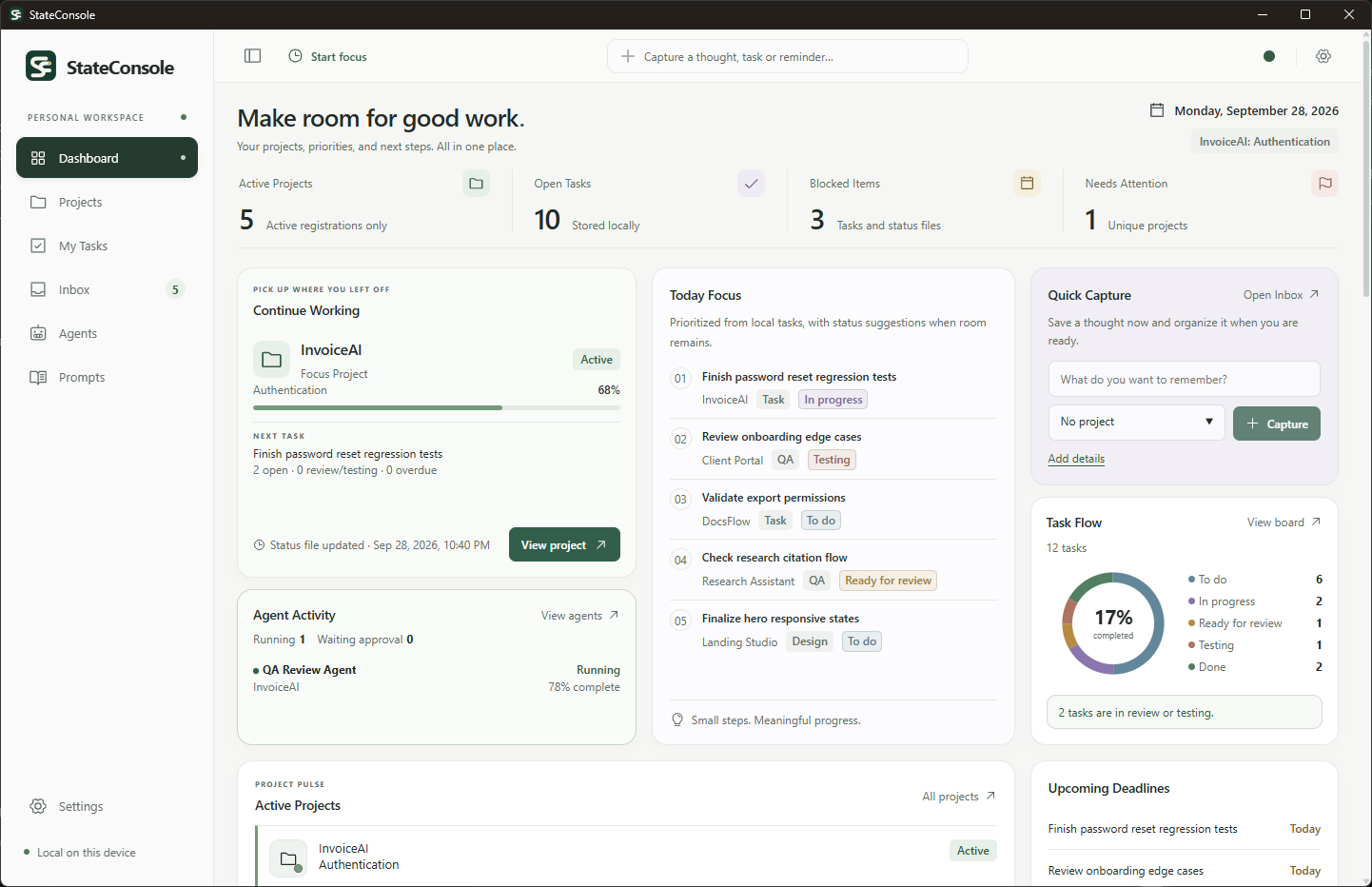
Return to three projects, choose one next action
Illustrative workflow — all projects and data below are fictional.
- Review the current state. InvoiceAI is your Active Focus Project, with its authentication phase reporting 68% progress. Client Portal reports an open blocker: a decision on access roles. DocsFlow is Planning, with a reported update more than 14 days old. Open the full Projects list to review all three; Project Pulse only shows recently opened Active or Planning projects.
- Inspect the blocker before switching. Use Blocked / Waiting to see Client Portal’s reported dependency, then open its project details for context. Review DocsFlow’s stale report before relying on its next action. Neither an attention label nor a progress percentage tells you whether code has been verified.
- Continue with an actionable task. Keep InvoiceAI as Focus Project. Continue Working shows its open task, “Finish password reset regression tests.” Open that task or choose View project, then do the work in your existing tools. StateConsole helps you select the next step; it does not run the tests for you.
What helps you choose where to continue
- Focus Project
- Choose an available Active or Planning project to guide Continue Working. This saved project preference is separate from a timed Focus Session. Registration state controls eligibility; a status file does not silently change that state.
- Continue Working and Today Focus
- Continue Working follows your eligible Focus Project, or falls back to an Active or Planning registration using recent opening and update information. Its next task comes from stored open tasks; when the project has none, it can show an unchecked reported next action. Today Focus prioritizes local tasks, then fills remaining space with eligible status-file suggestions.
- Project overview
- Project Pulse shows up to three recently opened Active or Planning projects. All projects opens the full registered list. Project summaries show reported phase and progress, next action, health and update information; the Dashboard summaries also include open task and reported blocker counts.
- Attention indicators
- Missing files need setup; malformed reports, future dates and registration/report mismatches need attention. Unreadable sources appear unavailable, and otherwise valid, unblocked reports become stale when their reported update is more than 14 days old. Blocked / Waiting brings together task blocker reasons and eligible open reported blockers, with their source identified.
Where the overview gets its information
Each registered project stays in its existing local folder. While the app is running, StateConsole watches its root PROJECT_STATUS.md for changes and refreshes the supported reported fields and sections. Manual refresh remains available. See the PROJECT_STATUS.md template and setup guide for the supported convention and file boundaries.
Registrations, tasks and other workspace records are stored separately in local SQLite. Tasks contribute priorities, due dates and workflow status; project reports contribute reported focus, progress, next actions and blockers. Agent Activity reflects locally tracked, agent-reported runs. File updates and reported checks are context to review, not independent proof that the work is correct.
Questions about the project dashboard
Can I track repositories without moving them?
Yes. Register an existing supported local project folder; it stays in place. The app reads the root status file rather than copying your repository into a new workspace. Follow the project connection steps.
Does the dashboard verify code, tests or deployments?
No. Reported progress, checked items and agent-reported checks are claims to review. A Ready status file means it parsed successfully. Review code changes and actual test or deployment evidence yourself; see the status-reporting boundaries.
Does StateConsole execute or control coding agents?
No. It tracks reported runs and lets you review their context. It does not execute, control or terminate external coding agents. Keep using your existing coding tools; read the agent tracking explanation.
How is project status different from task status?
Project status describes the repository’s reported state; task status belongs to a separate app work item. Explicitly creating a task from an eligible status item makes a one-way snapshot. Later file edits do not update that task, and task edits do not rewrite the file. The guide explains the task boundary.
A repeatable return-to-work workflow
For a practical way to compare blockers, review evidence and leave a useful handoff, read how to manage multiple coding projects.
Start with one project’s status
Use the template to make your current focus and next action explicit, then see how the Dashboard uses that context alongside local tasks. If you are considering StateConsole as a project tracker for developers, review its current pricing and availability before planning your setup.
Purchasing is not available yet.